
Ingesting documents
Uploading files
Evidence enters a project through three intake paths:
- Direct upload — drag-and-drop files into the project. Supports bulk upload for large batches.
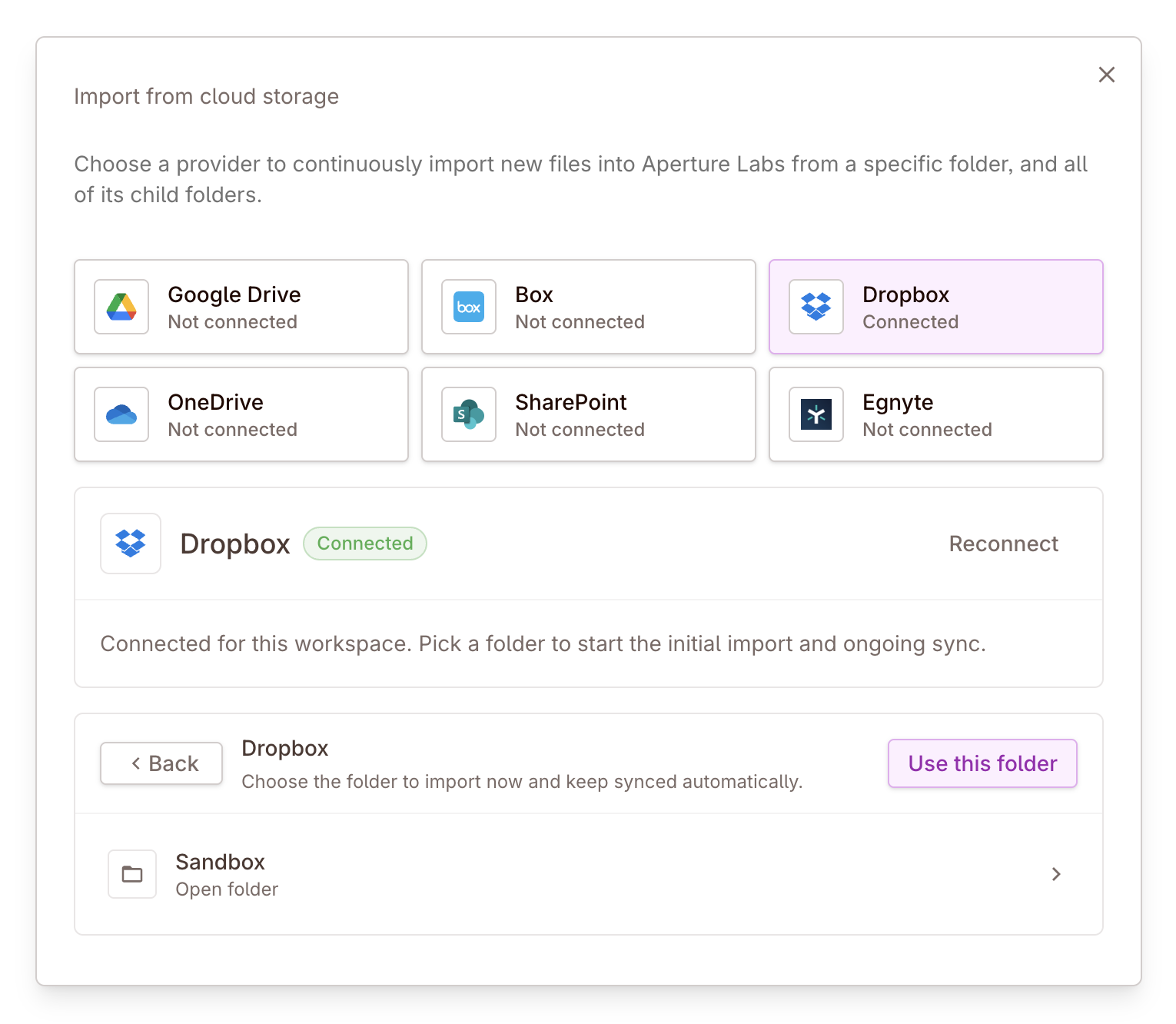
- Cloud storage import — connect to an external storage provider and import files directly.
- Email forwarding — forward email threads and attachments into the project inbox.
All three paths feed the same project file model. Once a file lands, it enters the processing pipeline regardless of how it arrived.
Start with the material batch, not the entire archive
Real deal example: get to signal sooner
If the first upload batch contains the key customer contracts, org materials, and latest financial pack, the team gets usable findings much sooner than if the first batch is a mixed archive of low-signal files.
Email forwarding
Each project has its own forwarding address, and forwarding an email to that project address adds the thread and its attachments to the project evidence set.
That is useful when diligence material does not start in a data room at all. A sell-side reply, adviser follow-up, customer reference thread, or compliance clarification can be pushed straight into the deal without saving attachments locally and re-uploading them by hand.
This makes Colabra better at handling live diligence traffic rather than only static room dumps. The forwarded thread becomes part of the project record, and its attachments enter the same downstream processing flow as any other file.
What happens the moment a file lands
The processing pipeline runs automatically:
- The file is attached to the project as a standalone evidence file.
- The AI classifies the file into the relevant document category.
- Based on classification, extraction targets are assigned — these determine what structured data gets pulled.
- Structured output is generated: clauses, financials, entities, ownership data, and more.
- Findings are evaluated against your diligence guardrails.
- Extracted entities are added to the project’s entity graph.
This entire sequence runs without manual intervention. The files tab updates as each stage completes.
Monitoring progress
The Evidence list does not expose backend processing codes. It shows three user-facing states:
| Evidence list state | Meaning |
|---|---|
| Processing… | The file is queued or actively running through the pipeline. |
| Processing failed | The file hit an error. In the list, the row shows the red failure indicator and offers retry rather than pretending the document is ready. |
| File-type icon | Once processing completes, the row switches back to the normal file-type icon for that document instead of showing a status badge. That means downstream analysis is available. |
Duplicates and failures
This part of the workflow is easier to understand if you separate three cases:
- the file uploaded successfully
- the upload itself failed
- the file uploaded, but processing failed later
Duplicate file names
When incoming files have the same name as files already linked to the project, Colabra does not silently create noise. It opens the Duplicate file names dialog and asks how to handle them.
The available choices are:
| Option | When it is the right choice |
|---|---|
| Update them with new versions | The incoming file is a newer revision of the same document |
| Append sequential numbers | The files are genuinely different but happen to share the same filename |
| Skip all files with duplicate names | The incoming batch is redundant and should not be added |
That is an important review decision, not just an upload annoyance. If the seller sends a revised contract pack, creating a new version usually preserves the cleanest evidence history. If two different files share a generic name like Schedule.pdf, renaming them into separate files is safer.
Upload failures
If a file fails during upload, it does not become project evidence. The app shows a Failed to upload files dialog listing the failed filenames and the upload error for each one.
That means the file never made it into the evidence set. Do not assume it is merely delayed.
Processing failures
If the upload succeeds but the downstream pipeline fails, the file still appears in the evidence list, but it shows the red Processing failed state instead of a normal file-type icon.
That means the document exists in the project, but classification and downstream analysis are not ready. In the file list and file details, reviewers can retry processing instead of treating the file as complete.