

OpenAI ChatGPT
What you need
- ChatGPT web with Apps and developer mode available
- your Colabra account
- the production remote MCP URL:
https://api.colabra.ai/mcp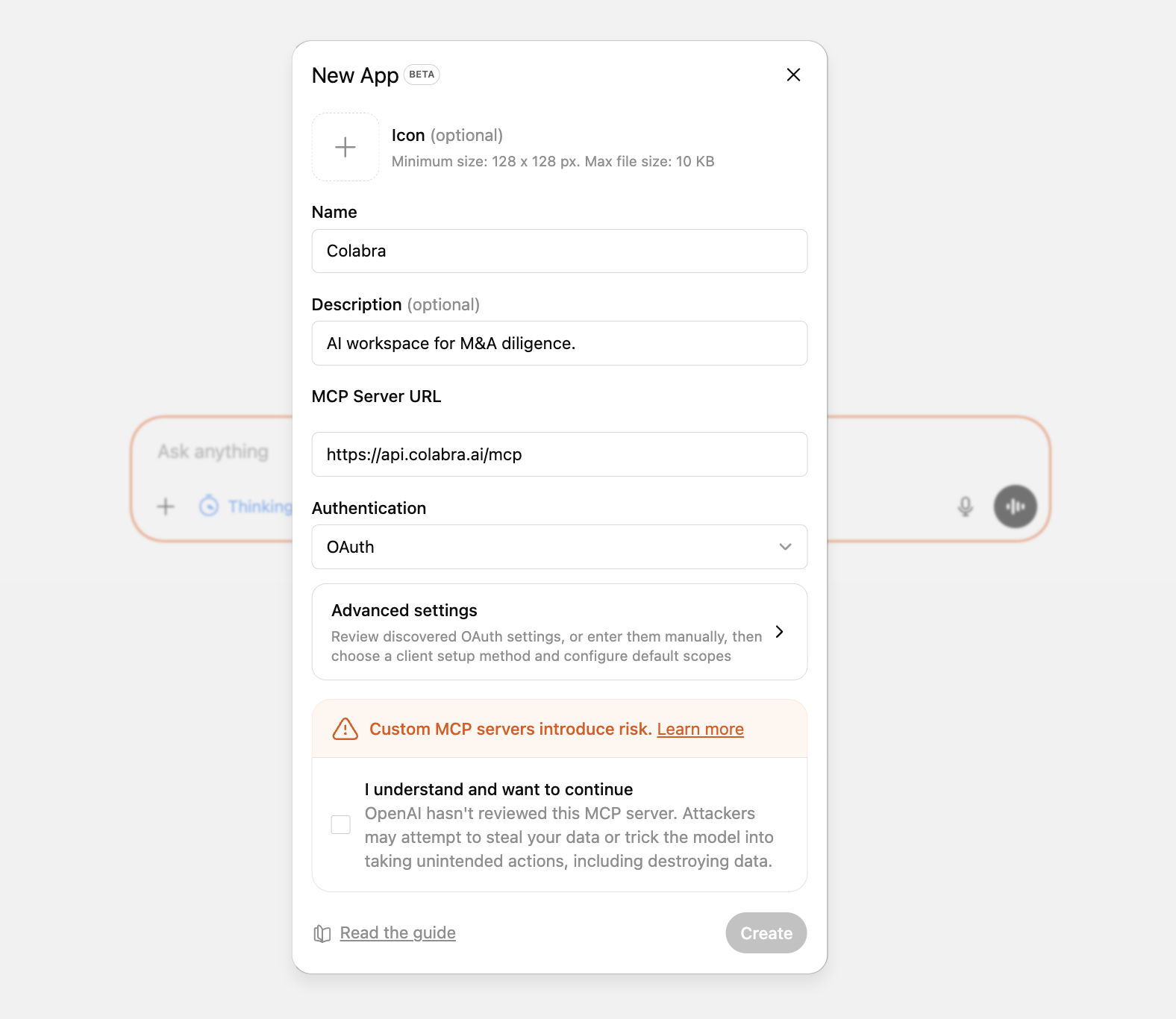
When to use ChatGPT with Colabra
ChatGPT is a good fit when a deal team wants conversational synthesis against live Colabra context: quick briefings, follow-up questions, first-pass drafting, and cross-checks that would otherwise involve a lot of tab switching.
The partner briefing before the morning call
Real deal example: fast synthesis from live project state
A partner wants the top risks, the biggest unresolved gaps, and which contracts still need change-of-control review. With Colabra connected in ChatGPT, that briefing can come from the live project instead of from pasted notes or yesterday’s export.
Setup
- Open Settings → Apps → Advanced settings.
- Turn on Developer mode.
- Go back to Settings → Apps and click Create app.
- In the new app form:
- set the name to
Colabra - optionally add a description
- set MCP Server URL to
https://api.colabra.ai/mcp - set Authentication to
OAuth
- set the name to
- Open Advanced settings only if you want to inspect the discovered OAuth configuration or ChatGPT fails to discover it automatically.
- Review the warning for custom MCP servers, confirm that you want to continue, and click Create.
- Complete the Colabra OAuth sign-in in the browser and approve access.
- Return to ChatGPT and enable the new app in the conversation when you want ChatGPT to use Colabra tools.
After connection
Once the app is enabled in a chat, keep the prompts tied to the operating question in front of you:
- “Which unresolved findings need senior review today?”
- “Draft a short update on open gaps still blocking sign-off.”
- “Which entities are both in perimeter and flagged for litigation risk?”
The stronger the question is anchored to the deal workflow, the more useful the MCP connection becomes.
If ChatGPT asks for manual OAuth fields
Use the endpoints listed on the MCP page.