
Excel exports
Colabra has a dedicated Export XLSX flow for project-level workbook exports. It is separate from PDF and Word report export.
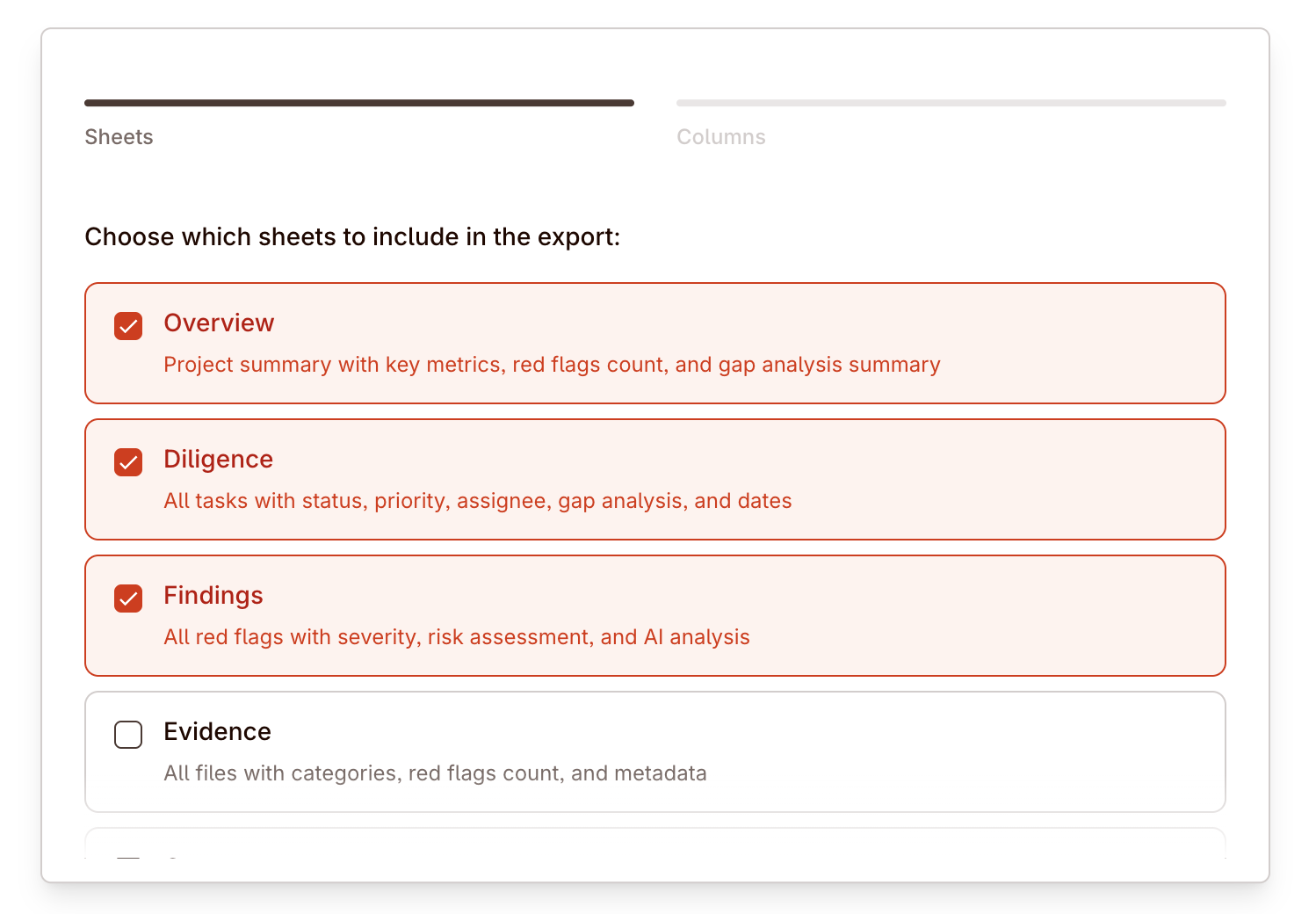
You open it from the project share/export surface, then choose exactly which workbook sheets and columns to include.
Use XLSX export when the next step is analysis, handoff, or working papers rather than narrative reading. If reports are for explaining the deal, workbook exports are for inspecting the record in structured form.
Send the right workbook, not the entire project dump
Real deal example: build the export around the question
If finance wants open diligence tasks plus unresolved requests, export those sheets. If legal wants clause-heavy contract review, export contracts, clauses, and findings. The wizard is strongest when you choose sheets based on the downstream question rather than exporting everything by default.
How the XLSX export wizard works
The export wizard follows up to three steps:
- Sheets — choose which sheets to include in the workbook.
- Columns — choose which columns to include for each selected sheet.
- Clauses — if the
Clausessheet is selected, configure clause-specific filters.
The Clauses step only appears when the workbook includes the Clauses sheet.
Workbook sheets
These are the sheets the wizard currently supports:
| Sheet | What it contains |
|---|---|
| Overview | Project summary with key metrics, red-flags count, and gap-analysis summary |
| Diligence | All tasks with status, priority, assignee, gap analysis, and dates |
| Findings | All red flags with severity, risk assessment, and AI analysis |
| Evidence | All files with categories, red-flags count, and metadata |
| Contracts | One row per agreement-like file with lifecycle, governing law, and consent signals |
| Entities | All entities extracted from files with identifiers and risk scores |
| Clauses | Extracted contract clauses with facts, flags, and page references |
| Requests | Requests with status, resolution info, and task context |
Default sheets are:
- Overview
- Diligence
- Findings
Those defaults are a reasonable first pass for a broad project review, but specialist handoffs usually improve when you trim the workbook to only the sheets the recipient will actually use.
Clauses sheet settings
When the workbook includes the Clauses sheet, the wizard adds clause-specific settings:
| Setting | What it does |
|---|---|
| Only clauses with flags | Exports only clauses that currently have associated flags |
| Clause types | Restricts the export to selected clause-topic groups or specific clause topics |
Clause-topic groups exposed in the wizard:
| Group | Topics covered |
|---|---|
| Core | Recitals, transaction terms, assignment, change of control, limitation of liability, indemnity |
| Commercial | Payment terms, pricing/indexation, scope of work, deliverables and milestones, acceptance, change management, order of precedence |
| Tech & data | IP ownership, open-source software, source-code escrow, security, data processing, sub-processors, audit |
| Supply & ops | Forecasting commitments, delivery/incoterms, installation/training, recalls and safety |
| Compliance | Compliance programs, export control, ESG/modern slavery, sector-specific clauses, government flowdowns |
| People | Non-compete, personnel/key-person, publicity, non-disparagement |
| Finance | Taxes, insurance, guarantees/security |
| Boilerplate | Confidentiality, warranty, support and maintenance, business continuity, data retention, exclusivity, MFN, ROFR/ROFO/ROFN, force majeure, governing law, execution, notices, term and renewal, termination, expenses |
Column settings by sheet
Overview is the only sheet without configurable columns. Every other sheet lets you select all or clear all columns before export.
Diligence sheet
Columns: Task ID, Name, Workstream, Topic, Status, Stage, Priority, Start date, Due date, Assignee, Created by, Created at, Updated at, Gap status, Gap analysis.
Evidence sheet
Columns: File ID, File name, AI title, Location, Category, Subcategory, Standard code, Red flags, File type, File size, Uploaded at, Uploaded by.
Findings sheet
Columns: File ID, File, File title, File link, Flag, Severity, Location, Workstream, Category, Risk, Solution, AI quote, AI location, AI note, AI confidence, User override, Override user, Override timestamp, File size, File type, File uploaded.
Contracts sheet
Columns: File ID, File name, AI title, Location, Category, Subcategory, Agreement type, Contract status, Lifecycle status, Effective date, Expiry date, Renewal type, Renewal notice days, Governing law, Territory, Materiality, Materiality note, Assignment terms, CoC consent, CoC consequence, Red flags, File type, File size, Uploaded at.
Entities sheet
Columns: Entity ID, Name, Normalized name, Kind, Country, Jurisdiction, Address, Emails, Phone numbers, Tax IDs, Company numbers, External IDs, Identifiers JSON, Domains, Tickers, Incorporated date, Sanctions risk, Litigation risk, PEP risk, Adverse media risk, Intellectual property risk, Licenses risk, Enriched at, Created at, Updated at.
Clauses sheet
Columns: Clause ID, File ID, File name, File title, Clause topics, Clause label, Status, Clause text, Page references, Confidence, Flags count, Flags summary, Facts JSON, Location, Workstream, Language, Created at, Updated at.
Requests sheet
Columns: Request ID, Title, Description, Task ID, Task name, Workstream, Status, Created by, Created at, Updated at, Responses, Resolved, Resolved by, Resolved at.
What to use each export for
| Need | Best sheet set |
|---|---|
| Executive project summary | Overview, Findings |
| Workstream tracking | Diligence, Requests |
| File-level diligence backup | Evidence, Contracts, Clauses |
| Entity and risk review | Entities, Findings |
| Contract-heavy legal export | Contracts, Clauses, Findings |
Use XLSX export when you need structured data outside the product for offline review, downstream modelling, committee packs, or client deliverables. For narrative writing, stay in reports. For reusable lenses, stay in views.