
Assembling your team
Inviting deal team members
Invite team members from the workspace settings first. That creates the workspace-level membership that lets them exist inside the workspace at all.
That is not the same thing as project-level access. In Colabra, access works in two layers:
- workspace membership controls who is inside the workspace and who can manage workspace-wide settings
- project access controls what role that person has on a specific deal
Do not treat those as one role model. They are related, but they answer different questions.
Workspace membership vs. project access
The built-in roles are split by scope:
| Scope | Built-in roles | What they control |
|---|---|---|
| Workspace | Owner, Member | Who can manage workspace settings, integrations, and membership |
| Project | Admin, Editor, Viewer | Who can manage access, edit, or only view within a specific deal |
Workspace roles are defined in the product’s default roles as Owner and Member, while project-compatible roles are Admin, Editor, and Viewer. The codebase keeps those as separate role sets rather than one universal list.
The practical meaning:
- Owner manages the workspace itself.
- Member belongs to the workspace but is not the same thing as a project editor or project admin.
- Project Admin / Editor / Viewer define what someone can do inside a given deal.
You assign workspace membership from the workspace members page. You assign project access from the project’s share/access controls.
One workspace, different deal access
Real deal example: workspace member, project editor
A finance reviewer may be a normal Member of the workspace, but an Editor on one active project and only a Viewer on another. That is why the page needs to separate workspace membership from project access.
Custom roles
If the built-in roles are too coarse, Colabra also supports custom roles.
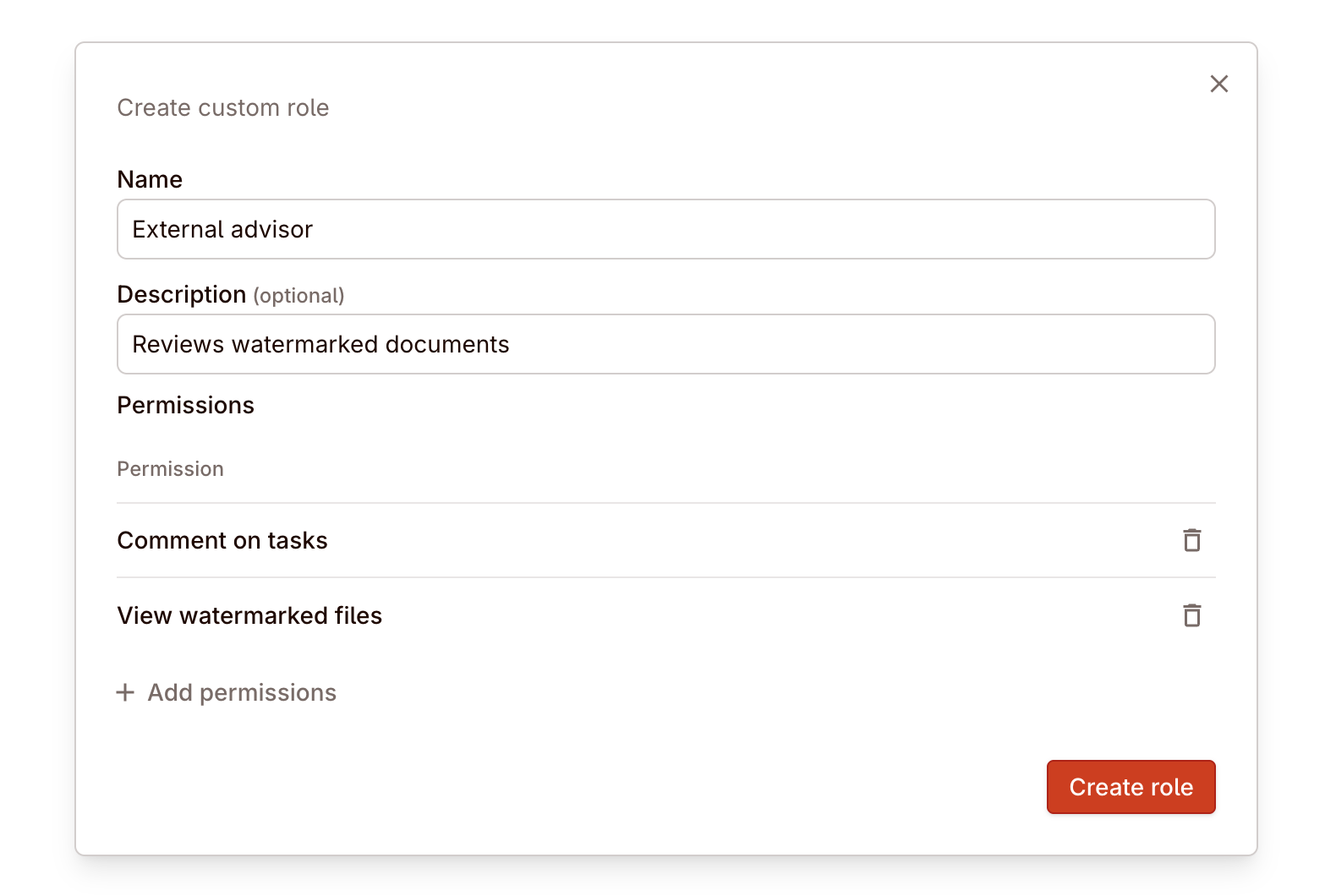
Custom roles are defined centrally, then surfaced where they are compatible with the resource you are sharing. In practice, that means a custom role can extend the workspace side, the project side, or both, depending on which permissions it includes.
The important correction here is: custom roles are not just an expansion of the built-in workspace roles. They can also represent more specific project-level permission sets.
Custom roles are useful when you want to give someone a narrower operating scope than the default built-ins.
Typical uses:
- a practice lead who can manage groups and staffing but not integrations
- an external adviser role that can view watermarked files and comment on tasks
- a senior reviewer who needs broader project visibility without full workspace ownership
Use custom roles when your team structure is more nuanced than the built-in defaults, but keep the principle the same: the assigned permissions should match how that person collaborates on the deal.
The external adviser role
Real deal example: project-specific custom access
An external counsel team may need to view watermarked documents and comment on tasks, but not manage project access or workspace settings. A custom role is the right fit when Viewer is too weak and Editor is too broad.
Groups
Groups let you organise people by function or review lane so assignment does not have to happen one person at a time.
Use groups when you want to:
- assign work by speciality instead of by named individual
- rotate work fairly across a team
- reuse the same routing structure across multiple deals
- combine manual staffing with assignment automation
The specialist routing model
Real deal example: functional groups across one deal
Create groups like Financial diligence, Commercial diligence, and Legal contracts. When a new batch of files lands, automation can round-robin financial files to the finance group while task owners still manually assign the highest-risk contracts to counsel.
Assigning workstreams
Most diligence teams divide work by domain: legal, financial, commercial, operational, compliance, tax, IT, HR. Colabra supports this through task assignment and workstream organisation.
Use the task list within each project to:
- Create tasks that map to your workstream structure.
- Assign each task to the team member responsible.
- Track progress through workflow statuses.
- Link evidence files to tasks so the connection between work and source material stays clear.
When a team wants a structured starting point, use the project’s Generate tasks flow or Import CSV in the Tasks tab. See Diligence tasks for how tasks, evidence linking, and review workflow actually work in the product.
The healthcare carve-out split
Real deal example: workstreams by diligence lane
For a healthcare carve-out, you might create workstreams for compliance, payer contracts, revenue quality, and people. Each workstream gets its own tasks, reviewers, and evidence trail, but all of it stays inside the same project.
Assignment automation
You can go beyond manual assignment and create rules that auto-assign both diligence tasks and evidence files.
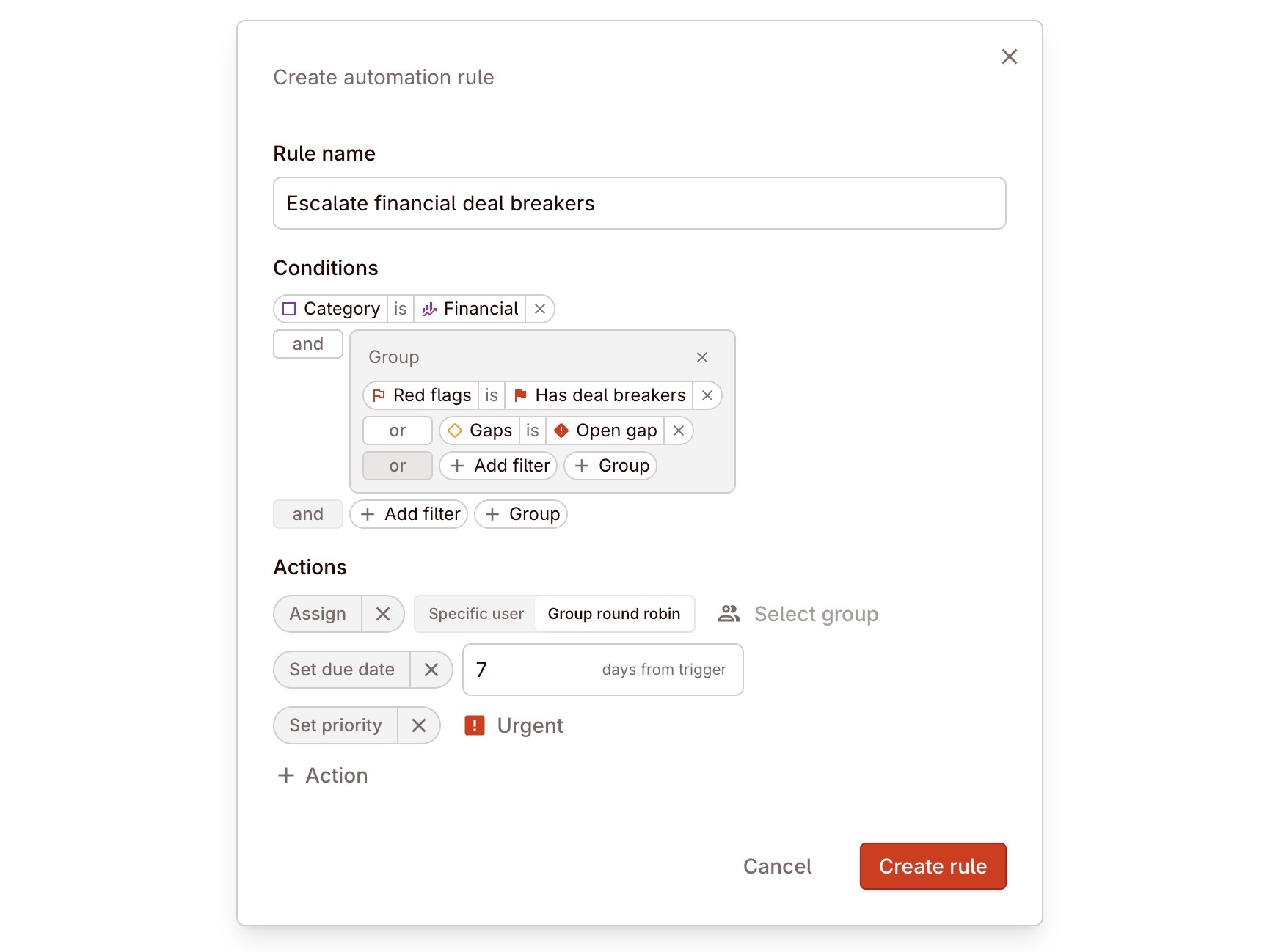
This is useful when your team splits work by speciality. For example, financial deal breakers can route to a finance group, contracts in certain jurisdictions can route to legal reviewers, and files can be round-robin assigned across a practice group once classification finishes.
For the full rule model — supported conditions, actions, task-status automation, and examples — see Automation rules.
The finance escalation rule
Real deal example: automatic routing after upload
A rule can assign files in the Financial category with deal-breaker flags to the finance team group, set the related task priority to urgent, and add a seven-day due date. Another rule can round-robin contracts governed by German law across your legal group.