
Diligence tasks
What a diligence task is
A diligence task is the core unit of review work in Colabra.
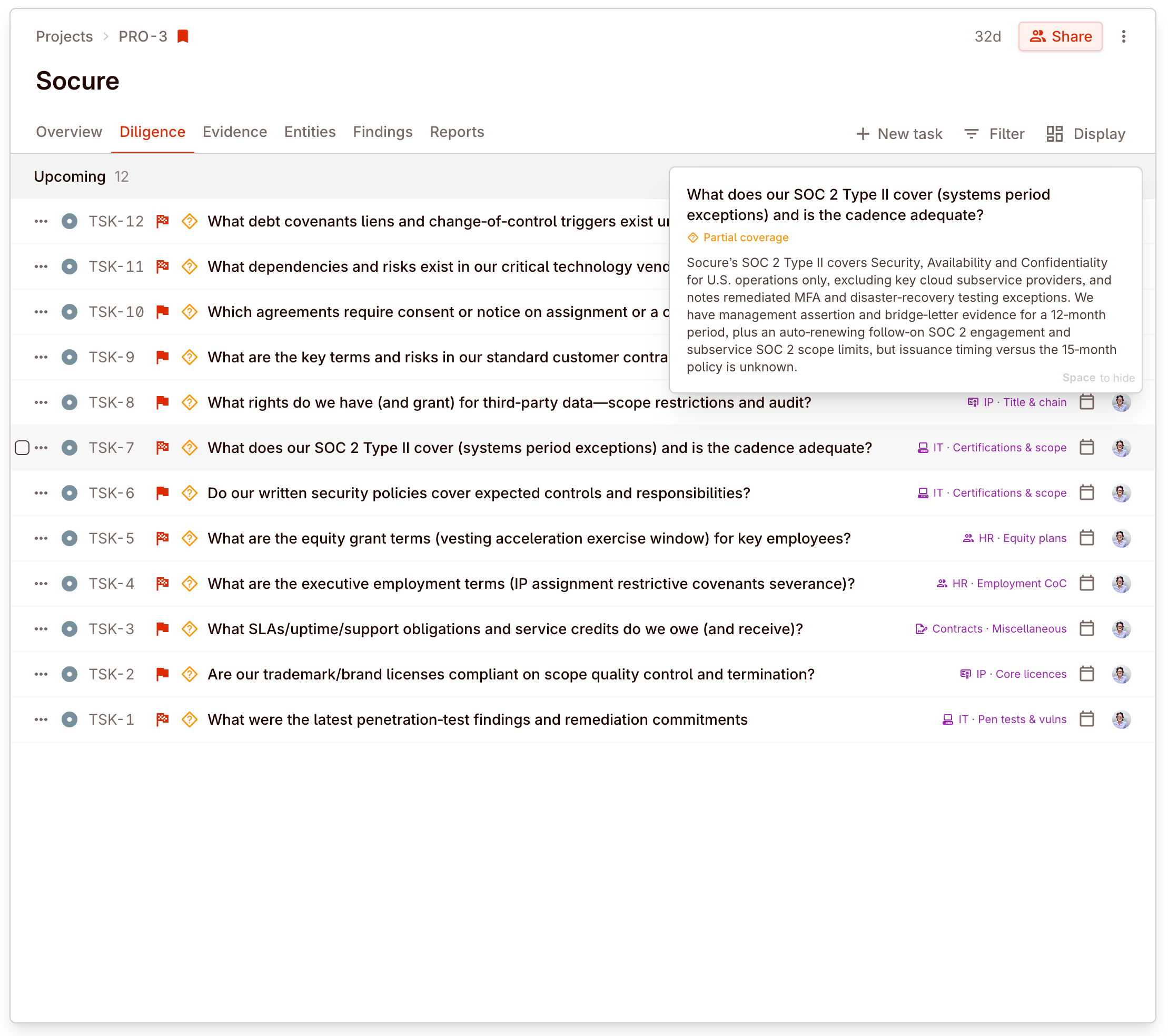
It is the place where a reviewer tracks a specific question, issue, or checklist item in the deal. That could be something like:
- review assignment and change-of-control clauses
- confirm working-capital exposure
- check whether a missing schedule has now been provided
- follow up on a flagged compliance issue
That is why the page matters. The task is where review work, evidence, gaps, flags, requests, and commentary come together around one diligence question.
Workstream and topic
Workstream is the task category. Topic is the more specific label under that category.
They are supporting fields used to group, filter, and generate tasks. They help organise the work, but they are not the main reason the task exists.
How tasks get into a project
There are three real entry points in the app today:
- New task for manual creation.
- Generate tasks from the diligence template wizard.
- Import CSV for bulk task creation.
That is different from Templates. Templates are reusable text snippets, not the task system.
Manual task creation
Use New task when the team needs to add one review item directly.
The task form supports the core fields you would expect for ongoing diligence work:
- name
- summary
- assignee
- workflow status
- due date
- priority
- workstream
- topic
This is the right path when a reviewer notices a missing issue, wants to capture follow-up work, or needs to add a one-off diligence item that does not belong in a larger generated set.
Generate tasks from the diligence template wizard
The app also has a dedicated Generate tasks flow in the project’s Tasks tab.
This is a real diligence-template feature, not the workspace text-template feature. The wizard lets the user:
- choose a baseline preset
- optionally layer overlays
- select which workstreams to include
- generate a batch of tasks into the project
That is the product feature that matches a checklist-style starting point.
Start from a baseline, then trim to the deal
Real deal example: generate the initial task set
For a new deal, the team can use Generate tasks to start from a preset diligence baseline, then limit the generated output to the workstreams that matter for that transaction. That matches the real app behavior much better than treating Templates as the task system.
Import tasks from CSV
The Tasks tab also supports Import CSV.
The CSV flow expects task rows built around:
WorkstreamTopicTask nameTask description
This is useful when a team already has a checklist or workplan outside Colabra and wants to bring it in without re-entering each task manually.
What a task hosts
Once a task exists, it becomes the container for the review work around that issue.
A task can host:
- Assignee — who is responsible for completing this work.
- Workflow status — where the task stands in your configured workflow (e.g. to do, in progress, in review, complete).
- Priority — urgency on the task itself.
- Dates — due dates and milestones.
- Workstream and topic — the taxonomy used for grouping and filtering.
- Gap analysis — whether the task has enough linked evidence.
- Task-level flags — issues inferred from the evidence linked to that task.
- Requests — seller-facing or adviser-facing asks generated from the task context.
- Comments — threaded discussion tied to the task context.
The project-level Tasks tab is where those tasks are listed, grouped, filtered, and bulk-managed. The task detail view is where a reviewer actually works the task.
For the coordination layer around tasks — dependencies, blocked-by relationships, and project milestones — see Dependencies and milestones.
Evidence linking
Evidence linking is what makes a diligence task more than a checklist row.
Inside a task, the Evidence tab shows the files currently linked to that task. From there, reviewers can:
- open linked files in task context
- Link evidence from the project’s existing file set
- Unlink file when a file should no longer count toward that task
That linkage matters because task gap analysis and task-level flags are driven by the files linked to the task. In the app, the empty state literally tells the reviewer to link evidence to trigger gap analysis.
The task only becomes meaningful once evidence is linked
Real deal example: contract review task with supporting files
A task called “Review assignment and CoC exposure” is only actionable once the relevant agreements are linked in the task’s Evidence tab. Once those files are attached, the task can drive gap analysis and task-level findings against the actual evidence set.
If you need the separate file-classification model, see Sort: Automatic classification.